
Gawr Gura Quest for Bread Quest for Bread controls
Keyboard, Xbox pad, and Steam Deck — confirm jump, spin, and trident in Options.
Gawr Gura: Quest for Bread is a single-player third-person action-platformer: jump, spin, fight, reunite a shark with lost bread. Kenny Park built it; holo Indie published it on 27 August 2026 as Steam app 2054520. Steam lists full controller support, including Xbox pads, Steam Deck Verified, save-anytime, and no quick-time events. The in-game interface is English only. This page is the input sheet. How to Play is the spacing lesson. Getting Started is the install. Do not mix those three jobs.
Why this page is not How to Play
Players search Quest for Bread controls because magma rooms punish a confused jump more than they punish a weak GPU. How to Play already explains hang time, trident reach, and why the yellow bar twitches. This page answers which hand does which verb, and which device to pick before the lava fortress. The settings helper still owns invert-Y and dead zones.
Do not expect a printable WASD overlay. Public coverage does not publish a complete bind table this wiki can quote without guessing. Typical third-person layout on PC is WASD to move, Space to jump, and the mouse to look — confirm every row in the in-game Options menu. On an Xbox pad, expect a face button for jump and a shoulder or trigger for spin or attack. Confirm on the in-game prompt, not on a wiki diagram. Inventing A, B, X, or Y here would be a lie that walks you into magma.
Use this page once. Keep Options open until your hands stop arguing. Named doors go to the boss guide. Routes go to the walkthrough.
Input devices
Finish one device. Mixing a mouse flick and a pad jump in the same lava gap is how first-hour files look unfair.
Keyboard and mouse. Fine if you already aim third-person cameras with a mouse. Locomotion on the left hand, look on the right. A sloppy mouse flick during a spin walks Gura off a skull platform. Do not bind jump and attack to the same key. Confirm in Options after the first cheap death. The bind screen is still called Options in English.
Xbox pad. Steam lists full controller support, including Xbox pads. Left stick is locomotion, right stick is camera. Jump on a face button. Spin or attack on a shoulder or trigger — whichever the prompt shows. If the left stick drifts, Gura walks into orange without a jump; that is a dead-zone problem for the settings helper. Never bind attack to the same input as jump. Magma rooms need a clean hop.
Steam Deck. Valve lists the game as Steam Deck Verified. Start from the default verified profile. Trackpads can mimic a mouse; they are a worse camera than the right stick. Use the sticks. Confirm jump, spin, and trident on the on-screen prompt the first time a lava gap appears.
Camera
The camera is an input, not wallpaper. Hold the look control so the next grey rock is on-screen before you leave the current one. In the lava fortress, glance at magma only long enough to confirm it is still magma, then snap back to the landing. In the Calliope arena, if you bury the named red bar labelled Mori Calliope, you miss a telegraph and blame the trident.
Invert Y only on a wide floor. Keyboard players: turn mouse speed down until a 180 does not throw the shark off a torch block. Pad and Deck players: a heavy right stick is safer than a twitchy one. Whether the machine holds a stable frame during that look lives on system requirements. A stuttering camera is an input failure even when your thumbs are honest.
HUD as feedback
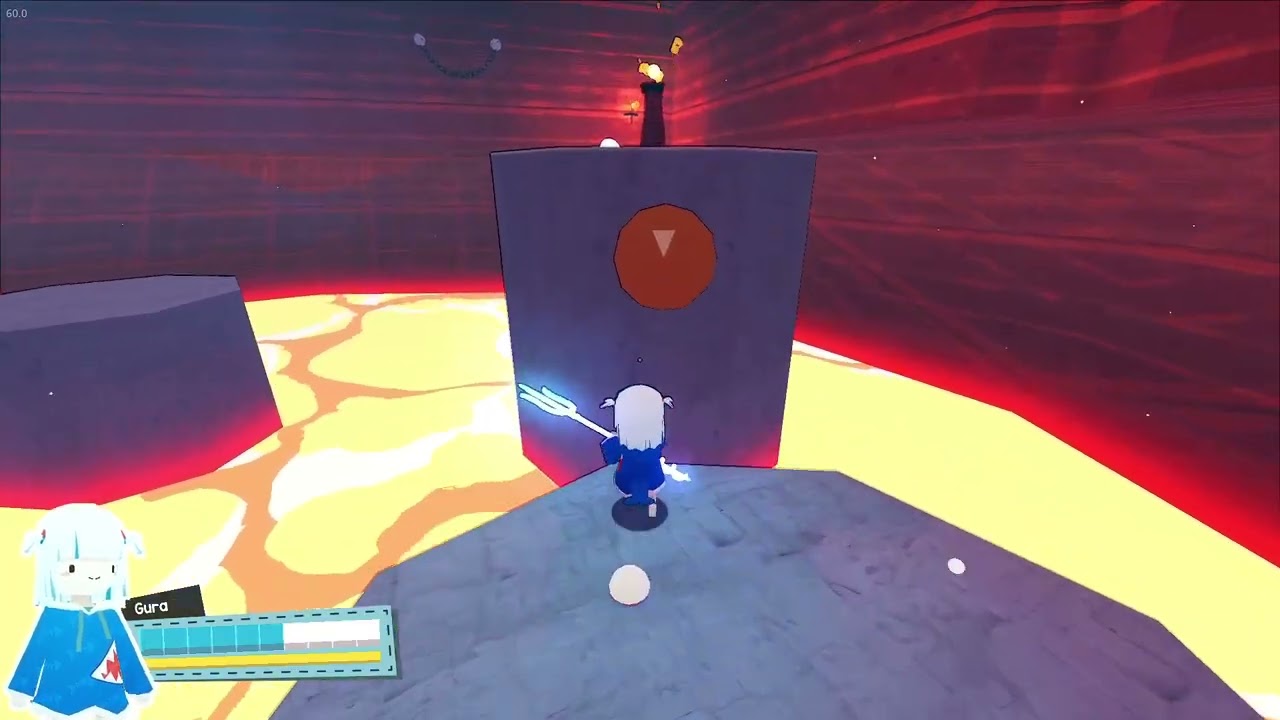
Bottom-left in circulating footage: Gura’s chibi portrait, her name, a long cyan bar, a shorter yellow bar. During the Calliope fight a named red bar labelled Mori Calliope sits at the top. Treat the two Gura bars as telemetry for the last input.
Cyan dropping after a hit means contact you did not need. Yellow moving when you commit to a spin means a stamina-style cost. This wiki will not invent stat names the game does not print. If either bar is empty, stop optional jumps. The game saves anytime; a panicked hat grab is never worth a five-minute backtrack.
If cyan drops while you thought you were only spinning, you are feeding attack into a pit. If yellow is empty while you thought you were walking, you are holding spin. Open Options. Confirm. Then play.
Practice drill on a safe floor
Do this before magma, not inside it.
- Stand on a wide floor. Camera behind Gura, not inside a wall.
- Walk to a painted edge and stop. If she keeps sliding, that is drift — settings helper.
- Jump in place. Typical PC layout uses Space; typical pad layout uses a face button. Confirm on the prompt. Note the apex; that is the tax for every lava gap.
- Add the spin. Watch the yellow bar. Extra hang has a cost.
- Swing the trident on landing, then in the air. Typical pad layout puts this on a shoulder or trigger; typical mouse layout puts it on a click. Confirm. Do not swing while the camera is mid-reorient.
- Turn ninety degrees with the camera only, then jump. If the landing is off-screen, look speed is wrong.
Repeat until jump, spin, and trident are three different muscles. Then open the walkthrough or the boss guide with a device you trust.
Deck versus desktop
Desktop Windows is the spec system requirements describes: modest CPU and GPU, mouse or pad. Steam Deck is the same build in a Verified profile. The difference is where your thumbs rest, not a second campaign. Lock a stable frame rate on Deck: a stutter mid-spin is a death.
On desktop, a mouse can line up a hat sphere more precisely than a stick — and kill you faster if you flick during a spin. On Deck, the verified layout already maps a controller; do not add a keyboard overlay just to check WASD. English UI only means Options stays in English on both machines. Read the labels.
Steam Cloud can share a save if you sync before switching machines. Do not change binds on Deck, then pick up a desktop keyboard mid-gap without opening Options again. Single-player only means nobody holds a second pad on the couch. Your binds are the whole party.
The video is timing, not a chart
The capture in the middle of this page is a real demo VOD. Use it for jump height, spin hang, and how long Gura hangs over lava. Do not pause it to copy a keyboard overlay. The VOD will not print WASD or Xbox face buttons. It will show a shark committing to air time with a cyan trident. That is the reference.
When the drill feels honest, leave. The Guides Hub indexes routes, bosses, and hats. Come back only if a patch rewrites Options. If a bind still feels like a rumour, press the control and watch the HUD twitch. The next lava gap does not care which device you picked. It cares whether jump, spin, and trident are three inputs you can name without looking at your hands.
Frequently Asked Questions
Quick answers for first-time shark pilots and 100% hunters.
Where is the official keybind list?
There is no public chart this wiki will invent. Typical PC layout is WASD, Space, and mouse; a pad uses a face button for jump and a shoulder or trigger for spin or attack. Confirm in Options and on the in-game prompt.
Keyboard or Xbox pad on desktop?
Both work. Steam lists full controller support and Steam Deck Verified. Pick the device you can aim a camera with, then finish the drill here and the settings helper.
Does Steam Deck need a custom layout?
No. Start from the Verified profile. Use the sticks, not a keyboard overlay. Confirm jump, spin, and trident on the on-screen prompt.